
What is a Data Source?
A Data Source is any storage location where you have digital content – files, emails, appointments, contacts, social media posts, text messages etc. Some Data Sources are local – e.g. computer hard drives, phones, USB/flash drives, cameras etc. Others are remote – e.g. email accounts, cloud based file or photo storage accounts, web based calendars, text messaging accounts etc. Datamaton software applications can handle local as well as remote Data Sources.
Which local and cloud based Data Sources does Datamaton Knit support?
Currently, Datamaton’s software applications support the following Data Sources:
- Local Computer Hard Drives: all computer hard drives assigned a drive letter by Windows (e.g. C:\, D:\ etc.). The drive manufacturer and connection type to the computer do not matter.
- Removable Drives: CDs, DVDs, USB connected devices, flash drives, memory cards etc. that are recognized and supported by Windows.
- Network Attached Storage: all network attached storage (NAS) drives that are mapped as drive letters by Windows.
- Phones: any Android or Apple iOS phone recognized by Windows when it is connected to the computer. Some phones may require you to install manufacturer specific drivers before Windows will recognize it. Once Windows recognizes the phone, Knit will too. You do not need to enable USB debugging for this to work.
- Portable Devices: music players, cameras, camcorders etc. that are detected and supported by Windows are also supported by Knit.
- Email Accounts: Knit comes pre-configured with about ~70 email providers (e.g. Google Gmail, Apple iCloud mail, Microsoft Live and Office 365 Mail, Yahoo Mail, Comcast, AT & T, Zoho, AOL, Mail.com etc.). Knit supports industry standard IMAP, POP3 and SMTP email protocols, so it can support hundreds of additional email providers that support these protocols. If your email provider is not in the pre-configured list, you can get their IMAP and SMTP settings and add it to Knit using the procedure described at “How can I add an email Data Source not already listed?”. Knit also supports indexing emails from Google Takeout, Mozilla Thunderbird, Microsoft Outlook PST files and MBOX files.
- Cloud Storage Accounts: Knit currently support Google Drive, Microsoft OneDrive, Dropbox, Google Photos and FTP Servers. It also supports indexing cloud files in a Google Takeout. More cloud storage providers are being actively added.
- Calendar Accounts: Knit comes pre-configured with support for Google Calendar, Apple iCloud Calendar, Microsoft Office 365 hosted calendars and Yahoo Calendar. It also supports the industry standard CalDAV calendar protocol, so it can support dozens of additional calendar providers that support CalDAV. You just need the calendar server address from your provider, and Knit will automatically try to discover the calendars hosted there. In addition, Knit creates a local calendar on your computer’s hard drive. You can save appointments there if you don’t want to use a web based calendar.
Please note that the list of supported Data Sources is constantly evolving. Contact us if you have suggestions for what we should add or prioritize.
Do the different versions of Knit support the same Data Sources?
All paid versions of Knit (including the Lite version) support the same set of Data Sources. This list includes Data Sources that you may use primarily for work or school like SMB Network Attached Storage, Slack, FTP Servers, Microsoft Exchange Servers, Microsoft Office 365 hosted accounts and Google Workspace hosted accounts.
The Free versions of Datamaton Knit do not support Slack, FTP Servers, Microsoft Exchange Servers, Microsoft Office 365 accounts and Google Workspace accounts.
Which content types are supported by Datamaton Knit applications?
- All Datamaton Knit applications support basic content types – files, emails, contacts, calendar appointments and IM/text messages. On a per-Data-Source basis, you can select which content types Knit should process or ignore.
- Among files, Knit natively recognizes a wide variety of photos, videos, audio files and documents. Photo support includes not just the standard JPG, PNG, BMP, TIF, SVG etc. photo files but also proprietary and raw photo file formats used by Apple, Adobe, Canon, Sony, Nikon, Fuji, Olympus, Kodak, Sigma etc. Knit can detect and recognize faces inside all supported photo and video files.
- Knit natively supports compound compressed files like ZIP, 7z, GZIP, BZ2, ISO, CAB, TAR files etc. This means that the Knit indexer can automatically open them and index the files embedded inside them too. Thus, if you search for a photo based on a face name or date range, search results will include photos embedded inside such compressed files.
- Knit natively supports EML and MSG email files as well as compound email files like Microsoft Outlook PST files and MBOX files. This means that Knit will automatically index them as email messages. When you search for an email based on email properties like subject, sender or recipient name etc., matching emails embedded inside such email files will be included in the search results.
- Knit natively supports ICS calendar appointment files. When you search for an appointment based on properties like start/end time, subject etc., matching appointments embedded inside such ICS files will be included in the search results.
- Knit natively supports vCard contact files. When you search for a conntact based on properties like name, email address etc., matching contacts embedded inside such VCF files will be included in the search results.
- Knit will handle the supported content types even when they are deeply embedded inside other content types. For example, it will detect and recognize faces in a photo file inside a ZIP file inside an email (as attachment) inside an Outlook PST file inside another ZIP file that was created by Google Takeout.
Do the different versions of Knit support the same content types?
Yes.
Previous versions of Knit had separate Work and Home products where the Work version supported additional content types like Microsoft Outlook PST files. However, the boundaries between what we use at home versus at work or school have blurred and we increasingly use “work” type content “at home”. So Knit does not have separate Work and Home products any more. All versions of Knit now support the content types that were previously specific to Knit @Work.
How to add and automate indexing of new Data Sources in Knit?
Click on the “Add Data Source” button at the top left corner in Knit.

You will then get a screen like the one below that shows the supported Data Sources.
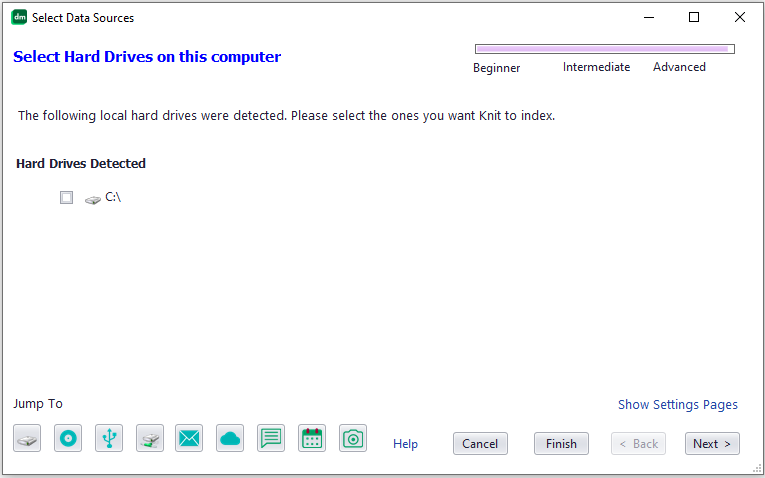
Select the Data Sources you want to add in each category and click on the “Next” button to move to the next category. If you want to view or change the default indexing settings, click on the “Show Settings Pages In Wizard” link. Please see “How can I control the indexing process?” to see how you can change Knit’s default indexing behavior. Click on the “Finish” button to start the indexing process.
Can I add multiple Google Drive, Office 365 etc. accounts simultaneously?
Yes. All email, cloud storage, calendar etc. Data Sources that requires an account to log in are “multi-instance”. You can add an unlimited number of those to Knit.
How can I add an email Data Source not already listed?
Knit already supports a number of pre-configured email Data Sources. However, there are thousands of email provides and Knit cannot possibly pre-configure all of them. Web based email providers that support industry standard IMAP or POP3 protocols typically publish the server settings needed to access your mail using any 3rd party email app like Knit. If your email provider supports IMAP, use that instead of POP3. Once you have the server values, you can enter them into Knit. Click on the “Add Data Source” button at the top left corner of Knit.
Navigate to the Email Data Sources by clicking on the email envelope at the bottom left of the “Add Data Source” screen. You will see a screen that looks like this:
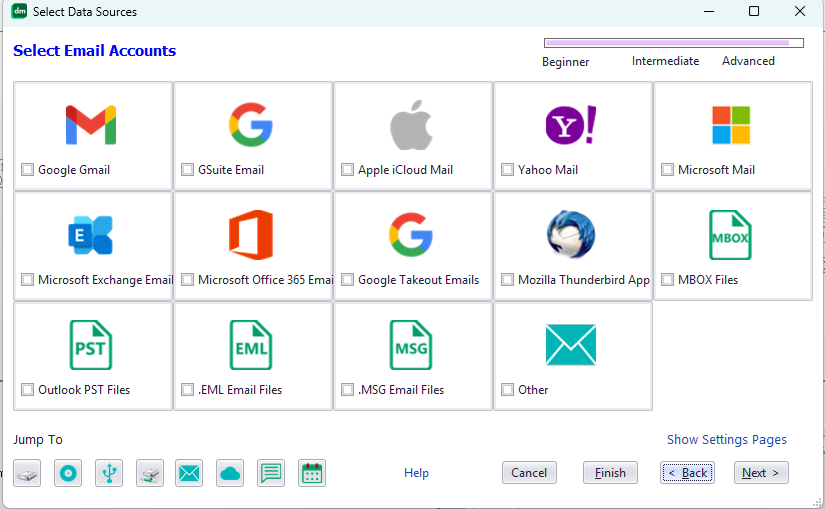
Click on the “Other” option at the bottom right edge of this screen. You will see a new “overflow” screen with a few more pre-configured email servers. If you see your email provider in this list, just select this by clicking on it selection box at the left edge of its row (under the column titled “Use?”).
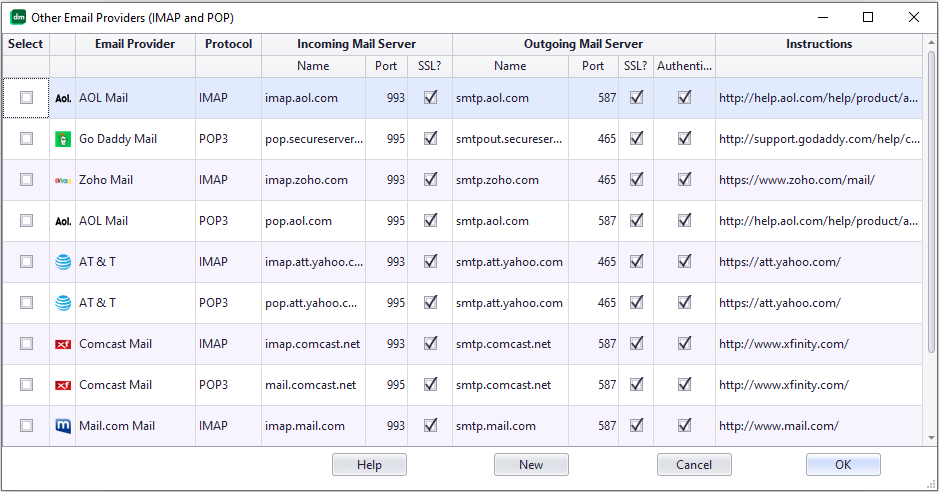
If you don’t see your email provide in this list above, you can manually enter your provider information. Click on the “New” button at the bottom of this screen. Enter your provider’s email server information in the screen that opens.
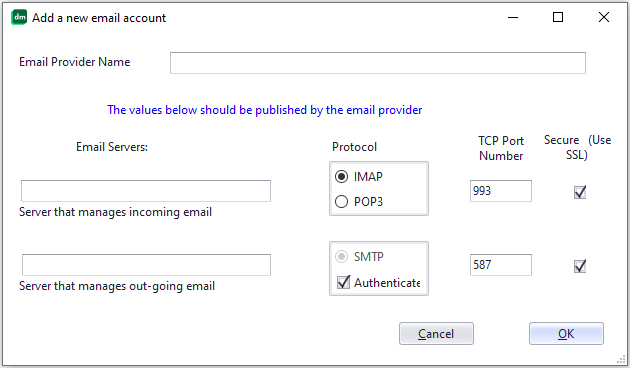
Enter the required server information in this screen and click on the “OK” button.
How long does the initial full indexing take for email and cloud accounts?
A few minutes to several hours – depending on the amount and type of content there and the speed of your computer and network connection.
A “typical” local hard disk (e.g. C:\) with a few hundred gigabytes of content should be completely indexed in less than an hour on a reasonably modern computer (e.g. Intel i3 class system with an SSD hard drive). A “typical” email account with about ten thousands messages should take less than a couple of hours with a fast internet connection (5 megabits per second or more). Most cloud storage accounts should be indexed within an hour or two. Indexing will take longer if you have a lot of photos, videos etc. since they need additional processing.
Please note that Knit now supports Artificial Intelligence (AI) based face detection and recognition in photos and videos. A Data Source that contains a large number of photos/videos can take longer to index. This is especially true for remote Data Sources (e.g. Google Drive, Google Photos. . .) as Knit has to download the photo/video to your local computer first.
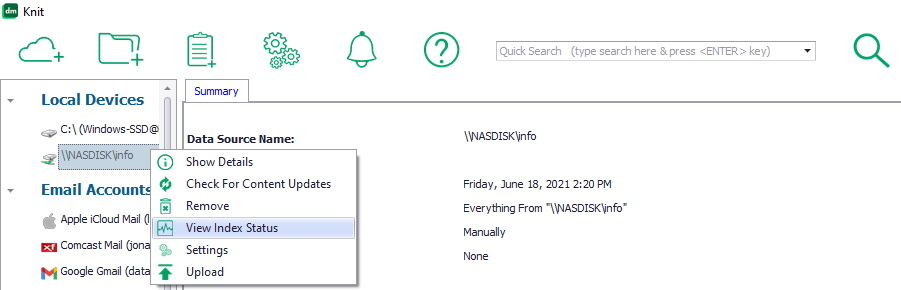
To view real-time status about which Data Source was indexed when, select any Data Source and right-click on it to bring up the menu. Click on the “View Index Status” menu item.
This will display a window shows when each Data Source was checked last for content updates.
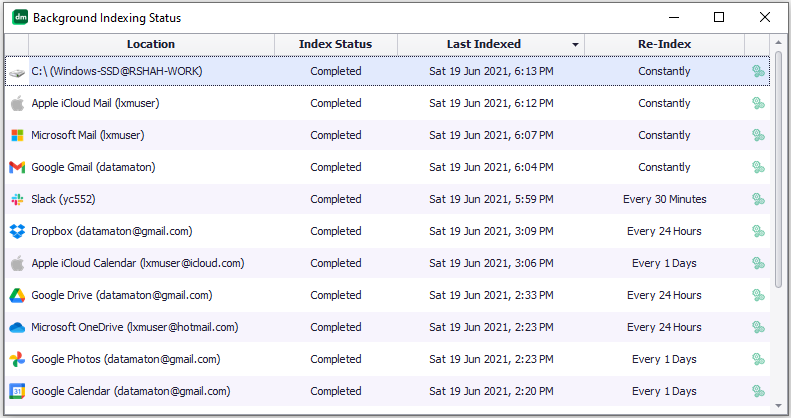
Note that Knit will make a full inventory of a Data Source only once when you add it for the first time. Subsequent re-indexing events to keep track of added, modified or deleted content are incremental and deal only with the updated content. These will finish much quicker, often within a few minutes.
How often are my Data Sources indexed? How can I change the defaults?
You control how often a Data Source is re-indexed to check for content updates. Each Data Source can be indexed at its own schedule independent of other Data Sources. The default re-indexing schedule is as follows:
- Local computer hard disks are checked “Constantly”. That is, Knit will get a notification from Windows immediately after a file is created, deleted or changed. Knit will update its index files right away, typically within seconds of the change.
- Removable devices/media like USB devices, phones, cameras, CDs, DVDs, memory cards etc. are indexed every time they are plugged into the computer.
- Network attached drives are not re-indexed automatically.
- Email accounts are checked “Constantly” if the email server supports this. Knit subscribes to push notifications from the server, which notifies Knit when new email arrives in your Inbox. If the server does not support push notifications, Knit will check for content updates once every 15 minutes.
- Text messaging and social media accounts like Slack are checked every 30 minutes.
- Cloud Storage accounts are checked every 24 hours.
- Web based calendar accounts are checked every 24 hours.
- Photo Storage accounts are checked every 24 hours.
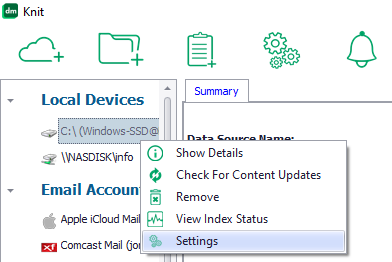
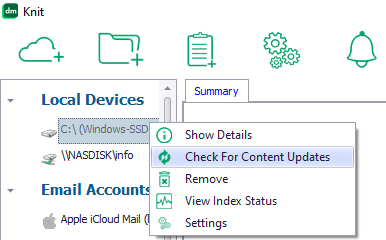
You can change these default values any time. Select a Data Source and right-click on it to bring up the menu choices as shown below. Click on the “Settings” menu choice.
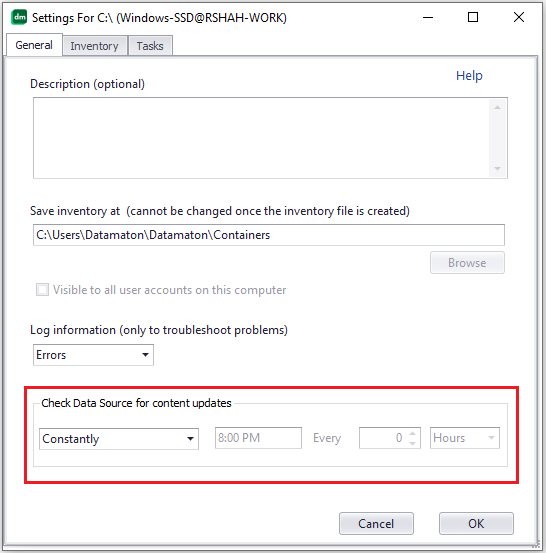
In the settings screen that comes up, set the values you want for the “Check Data Source for content updates” setting.
You can also manually re-index a Data Source any time by selecting a Data Source, right-clicking on it to bring up the menu choices and selecting “Check For Content Updates”.
Will I miss changes to my Data Source if I close the Knit UI? Will my backup tasks not run if I close Knit?
No, you can close the Knit user interface at any time without losing any functionality.
Knit is only the interface to you, the user. The actual work is done by several background processes. The “Cataloger” background process actually indexes a Data Source. The “Disk Indexer” background process monitors your local drives for changes. The “Email Indexer” background process monitors new email arriving at the email server. The “Task Manager” process runs the backup tasks you create. The “Refresher” launches other background tasks as needed and looks for USB and other portable devices being plugged in. These background processes are automatically created when needed and they are all independent of the Knit user interface. See How Knit works for more information.
Does Datamaton Knit download my remote content during indexing?
Knit will leave your content at its original location and will not delete, move or modify it on its own. There are specific scenarios where it may download your remote content to your local hard drive:
- It downloads remote photos and videos to perform face detection and recognition on it, and to collect photo/video specific infomration (e.g. camera used, GPS info, play duration etc.). Such downloaded copies are temporary – the files are deleted from your computer once they are indexed.
- It may download to cache recently arrived emails to allow you to read them quickly when you open them. Knit manages this cache space dynamically and won’t allow it to grow beyond a small percentage of available disk space.
- To move or copy content from one remote location to another remote location (e.g. from Yahoo Mail to Google GMail). Affected content is downloaded from source to your local hard drive and then uploaded to the remote destination. Again, such copies are temporary and the files are deleted after they are successfully copied to the destination.
Knit will NEVER copy or transmit your content, information about your content (metadata) or your account login information to our servers or to any affiliated 3rd party server.
How is authentication handled? Can I change the login method?
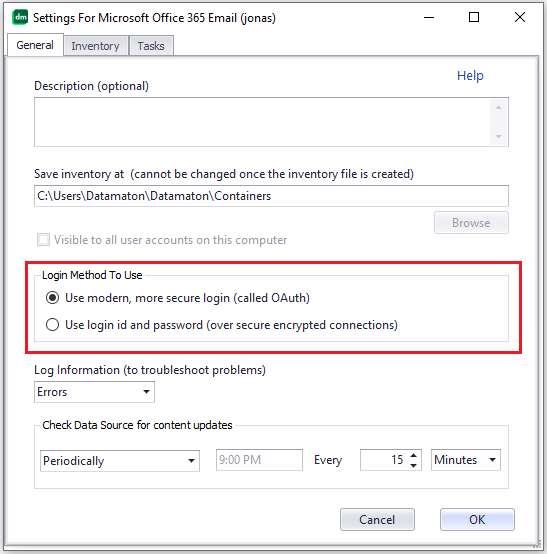
- A more modern and secure method (called OAuth). With this method, you directly log into your account’s server with a web browser and Knit never even sees your password.
- An older login-id and password based method. With this method, you enter your login id and password into Knit, which transmits it to your account’s server over an encrypted connection.
When possible, Knit will use the more secure OAuth method. However, not all vendors support it. Google, Microsoft, Dropbox, Slack etc. do, but many other vendors’ email and calendar accounts don’t. In most cases, Knit will figure out which login method to use and you won’t need to worry about this.
However, your college and work accounts are controlled by your IT administrator and they decide which login methods will work. Microsoft Office 365, Google Wokspace (aka Google GSuites or Google Apps For Business), Slack and Microsoft Exchange Server based accounts all fall in this category. In most cases, your IT administrator will disable the older login-id and password based login method. They will likely enable OAuth, but may only allow specific approved applications to use it. In that case, Knit won’t be able to log in, and you will have to request your IT administrator to review and approve Knit for use in your domain. For such accounts, we recommend the following approach:
- First, allow Knit to use its default OAuth login method. If that just works, you’re done!
If Knit cannot index your account due to login failure, switch it to use the login-id and password based method and retry. To do this, right-click on the account in the left panel and select “Settings”.
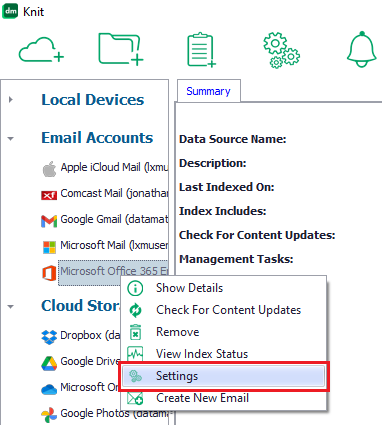

Look for and change the setting marked “Login method to use”. Note that you can change this setting only if the account vendor supports both login methods (not all of them do).

- If it still doesn’t work, switch back to OAuth. Generate a support request to your IT administrator asking that she approve Knit for OAuth use. Here’s some sample wording you can use:
Hello,
I’m trying to use a Datamaton desktop software application to search, organize and manage my account. It uses the modern and more secure OAuth mechanism to log in. However, this failed as our domain policy appears to only allow specific white-listed applications to use OAuth. I’d like to request that you review and approve Datamaton applications for use in this domain. General company and application information is available at https://www.datamaton.com/. The company’s privacy policy at https://www.datamaton.com/help/faqs/privacy/#privacypolicy clearly states that its applications collect absolutely no information about the user’s accounts or data. Their support team has offered to work with you and provide any information you need. They can be reached at support@datamaton.com.Thank you for your consideration.
What information is transmitted to Datamaton Inc. or affiliated 3rd parties?
Absolutely none. See our “Privacy Policy“.
How can I control the indexing process?
For each Data Source, you can independently control what content is indexed, how often it is re-indexed and where the index files are stored. You can change most aspects of the indexing process anytime you want. However, some parameters (e.g. location of the index files) can only be set the first time a Data Source is added.
Please leave settings to their default values unless you are sure you understand what the setting does and how a change will impact Knit.
To manage how a Data Source is indexed, select the Data Source from the left pane, right-click on it to open the menu and select the “Settings” menu option.
On the screen that opens up, you will see multiple tabs that let you control different aspects of the indexing process for this specific Data Source.
- Which parts of the Data Source should be indexed. This setting is available under the “Inventory” tab of the settings screen. You can select whether all or a subset of the content should be indexed. This is useful for Data Sources like hard disks which can have hundreds of thousands of system files that are otherwise uninteresting. Skipping indexing them significantly reduces the performance load Knit places on your computer.
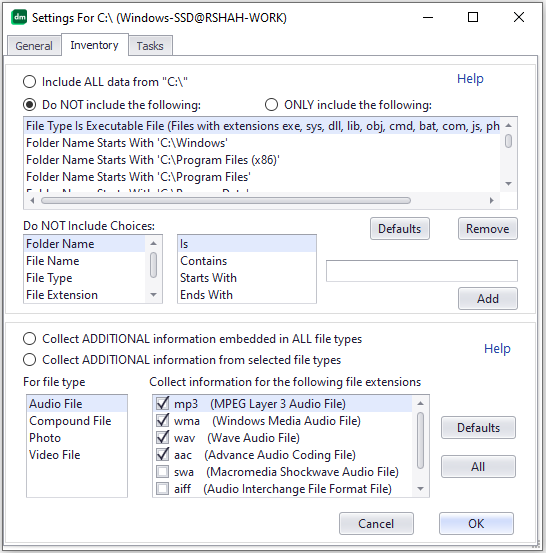

- Which parts of the Data Source should be indexed. This setting is available under the “Inventory” tab of the settings screen. You can select whether all or a subset of the content should be indexed. This is useful for Data Sources like hard disks which can have hundreds of thousands of system files that are otherwise uninteresting. Skipping indexing them significantly reduces the performance load Knit places on your computer.
- How often should the Data Source be re-indexed (also see “How often are my Data Sources indexed?”). This setting is available under the “General” tab of the settings screen.
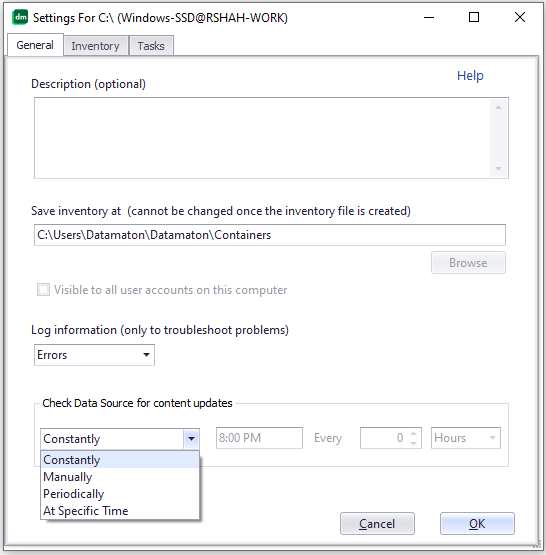

Knit will do a “full” index of a Data Source when you add it for the first time, and can then do “incremental” checks for new, modified and deleted content depending on how you have configured it. You can set a Data Source to be indexed:
- Manually: Knit will not automatically check the Data Source for content updates. You can force a manual check for updated content by selecting the Data Source in the left pane, right-clicking on it to open the menu, and selecting “Check For Content Updates”.
- Constantly: Knit will constantly monitor the Data Source for content updates. Any file creation, modification or deletion is typically reflected within seconds. With this, you can create “instant” tasks that back up a new or changed files within seconds of the change. Knit supports this setting only for Data Sources that it can constantly monitor.
- Periodically: Knit will check the Data Source for content updates every specified minutes, hours, days, weeks, months or years.
- At a specific time of day: Knit will check for content updates at the specified time of day. You can specify whether this should happen every day or every few days.
- When the device is plugged in: Knit will automatically check for content updates each time the device is plugged into the computer. This setting is useful for removable devices like USB/flash disks, CDs/DVDs and portable devices like phones, music players, camera and camcorders.
- Where the index files should be created. This setting lets you decide where Knit’s index files will be created. These files are accessed very frequently, so you should create them only on your computer’s hard drive, not on a removable USB drive or network attached storage. This setting is useful if you have multiple local hard drives and the default C:\ drive is low on space. Knit can create dozens of index files for each Data Source. Their size may vary from a few megabytes to hundreds of megabytes depending on the amount and nature of content being indexed.
This setting can only be set the first time a Data Source is added. It cannot be changed once the indexing process has started. - How much information should be logged when indexing. This setting determines whether Knit logs just errors or also warnings and informational messages when it accesses the Data Source. It is actually common for the indexing process to encounter errors. Many errors are either transient (e.g. temporary network problems) or expected (e.g. the current user does not have permissions to index this file). However, you may occasionally encounter persistent fatal errors that prevent a Data Source from being indexed or managed successfully. In such cases, you can set the logging level to “Verbose” and view the logs for hints about what might be going wrong. See “How can I view the errors encountered while trying to access a Data Source?” for how you can view the logged messages.
Will Knit see and index all the content from my phone?
This depends on the phone and how it connects to your computer.
When you connect a phone to your computer, the phone decides how to report itself to the PC. Most phones report themselves as photo storage devices (a “Picture Transport Protocol” or PTP compliant device) while some phones present themselves as music storage devices (a “Media Transport Protocol” or MTP compliant device). Such devices only report photos, videos and/or music files to the PC. Thus, Knit (and Windows) will only see these content types, not contacts, text messages and other types of files on the phone.
Some phones will let you change how they report themselves to the PC. You may be able to go into the phone’s “Settings” menu and find the option that controls how it connects to a PC. If you enable “USB Debugging” and connect to the PC as a “Mass Storage Device”, the phone will report itself as a storage disk drive when you connect it to the PC. In this case, Knit (and Windows) will see all content types and files on the phone.
Please note that when you create a task to back up your phone, Knit can only copy files that the phone reports and that Knit indexes. Thus, if Knit cannot see/index text messages, it won’t be able to back them up.
How often will I be prompted for passwords?
This depends on the Data Source being accessed and whether you have allowed Knit to save passwords (also see “How is authentication handled”).
Knit will need to access your Data Sources for the following reasons:
- To index or re-index the Data Source. How often this happens depends on how you’ve configured Knit to check the Data Source for content updates (see “How often are my Data Sources indexed?”).
- To run backup tasks you’ve created. How often this happens depends on how often you have configured the task to run.
- When you manually access the Data Source using Knit. This happens when you read or respond to an email or text message, create an appointment, move, copy, download or upload content etc. using Knit
If a Data Source uses password based authentication and you’ve asked Knit to save the password, Knit will prompt you for a password only once – when you add the Data Source. For a Data Source that supports OAuth based authentication, how often Knit will have to re-authenticate depends on the account’s provider. For example, Google supports OAuth based authentication and typically requires a re-authentication every few days for GMail access but much less frequently for Google Drive and Google Photos. Other providers like Slack typically do not require a re-authentication for several weeks or even months.
Can I add Data Sources later?
Yes, see “How do I tell Knit to index a Data Source?”. Also, you can change most Data Source settings at any time too, see “How can I control the indexing process?“.
How much space do the index files consume?
As a very rough approximation, index files consume about 0.2% of the amount of content on the Data Source. So if you have 100 gigabytes of actual indexed content on a disk drive, its index files will use about 200 megabytes of disk space on your computer. Please note this is a rough approximation only, not a guarantee or a limit that is enforced.
Knit now uses AI models to detect and recognize faces in photos and videos. Saving detected face information takes additional space, so the index files for a Data Source that contains lots of photos/videos will take more space.
What happens if I remove a Data Source from Knit ?
Removing a Data Source from Knit only removes it from Knit – nothing is deleted from the Data Source itself. Knit will not re-index the removed Data Source again and will delete its index files and any locally cached content from your computer.
Please note that if you select one or more actual content items in a Data Source and manually delete them, that selected content is deleted from the Data Source. For example, if you select a few emails and delete them, they will be deleted from the email server where they were stored.
To remove a Data Source, select it in the left panel and right-click on it to see the menu. Click on the “Remove” menu choice to remove it.