
How can I find my content using Knit?
Knit can help you find your content in several ways:
- “Simple” global search. You can simply type your search query in the main search box at the top center of the Knit Window. Knit will search in all Data Sources and in all content fields (e.g. file names, folder names, file content, song artist/lyrics, camera make/model, email & text message subject/from/to fields etc.).

This “simple” search box actually supports a sophisticated search syntax. See Knit Quick Search for details and examples.
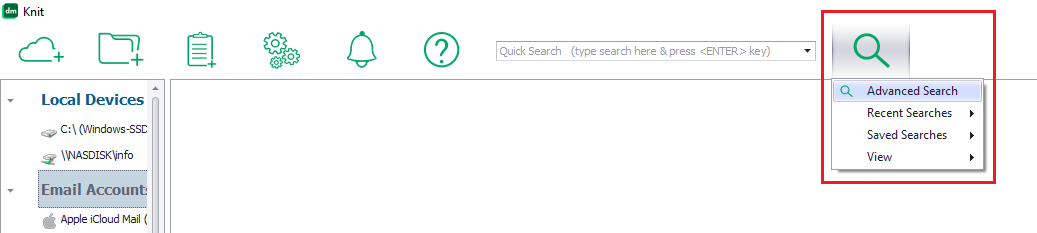
- “Advanced” search. To open the Advanced Search screen, click on the search icon next to the search box on the main Knit screen and click on the “Advanced Search” menu option.

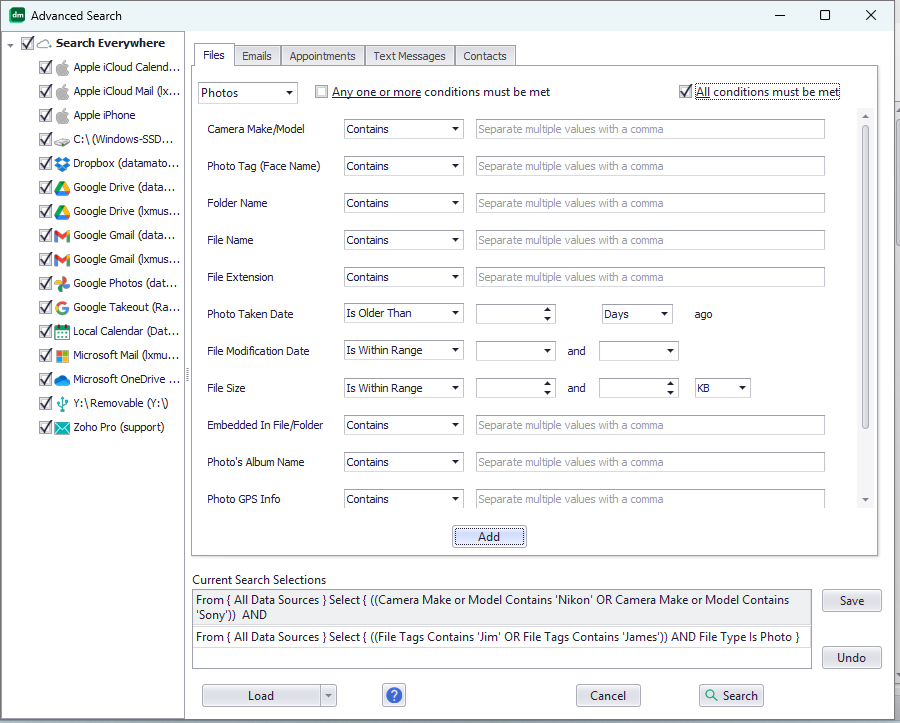
In the advanced search screen, you can choose which Data Sources to search and what to search for. You can search multiple locations and multiple content types in a single search.

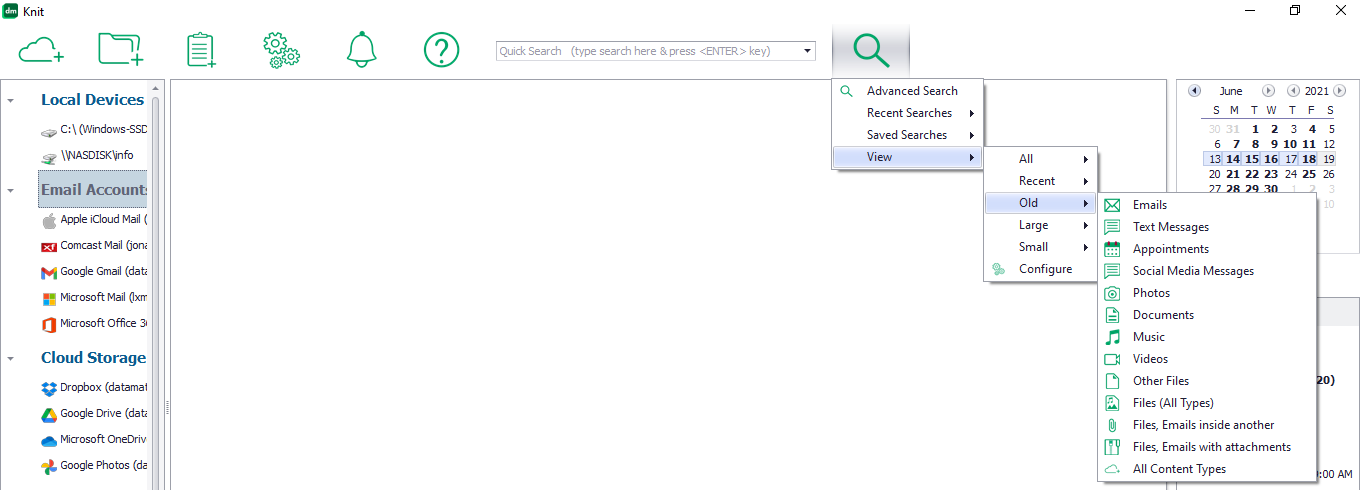
- Pre-build global searches. Knit comes with a set of pre-built global searches accessible from the “View” sub-menu of the search drop-down menu. These pre-build searches will help you find recent/old and large/small files, emails, text messages, calendar appointments etc.

- Search within a specific Data Source or Virtual Folder. When you select a Data Source or Virtual Folder from the left panel and double click on it, Knit will display its details in the right panel. Within this right panel, there’s a search box at the top left corner of the tab showing the contents. You can type in text into this box to search all content fields within that Data Source tab only.


- Search within a specific content property. When viewing a specific Data Source or Virtual Folder’s contents in the right panel, you will see a blank row (called “filter row”) just below the column header text. This is the empty row just below the “From”, “To”, “Size” etc. column headers in the picture below.

If you type something in this filter row, Knit will only show you content that contains the search text in that column. Note that you can enter separate search text for multiple columns to further restrict the display.
- Sorting content of a Data Source or a Virtual Folder: in the tab that shows the contents of a Data Source or Virtual Folder, you can click on the column header text (e.g. the “Subject”, “Size”, “Created On” etc. text) to sort the contents based on that column. For example, if you sort on “Created On” dates, you can quickly spot your content if you know the approximate date of what you are looking for.
Note that when you select the root level of a Data Source, you will see all its content in all sub-folders. If you sort the content at this root level, you will be able to find your content even if you don’t remember which sub-folder it is in.
Which content properties can I use to search?
You can search for something based on the following properties:
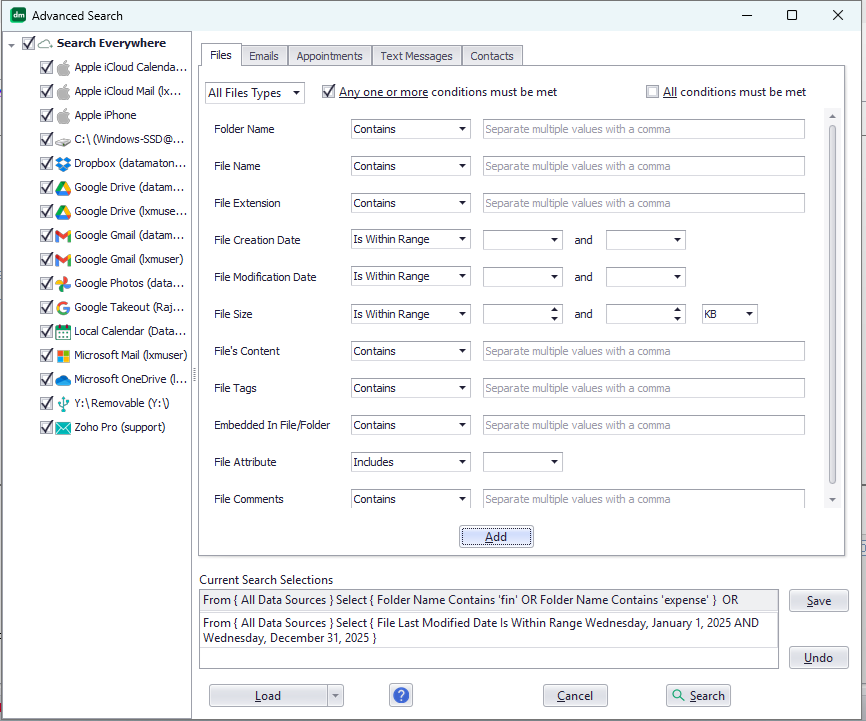
- For all types of files: folder name, file name, file type, file extension, creation date, last modified date, size, file attributes (e.g. is embedded inside another file, is important…), file tags and comments associated with the file. Knit will let you add tags & comments for any file type, regardless of where it is stored. For a file that is embedded inside another file (like ZIP file) or email (as attachment), you can search for it based on that file’s properties or the properties of the parent file/email within which it exists.
- Photo files: Options for all file types + names of faces detected/recognized in the photo, camera make or model, album name, photo title, GPS information. See AI based face detection & recognition for details on how Knit detects and recognizes faces. The “Creation Date” reported for photo files is the date the picture was taken, if this information is available, rather than the creation date of the file itself.
- Music/audio and video files: Options for all files + song title, album name, artist name, genre, composer name and play duration. If the file contains lyrics information embedded inside it (unfortunately this is rare), Knit will automatically collect and put it in the “Comments” associated with the file so you can search the “Comments” property with lyrics text. You can also search for videos based on the name of faces appearing in it.
- Documents: Options for all file types + file contents. Content based searching is currently supported only for documents that reside on local hard drives, not for cloud storage files.
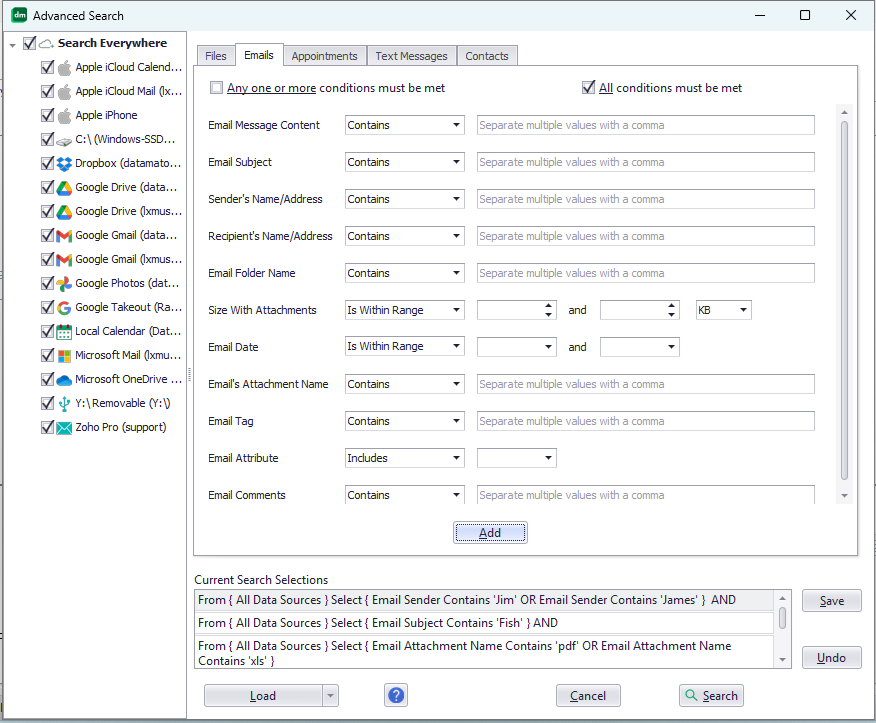
- Emails: email folder name, email sender, email recipients, subject, message text, date, size, and email specific attribute (e.g. read/unread, email forwarded, replied to…) in addition to generic attributes that are applicable to all content types (important/not important…).
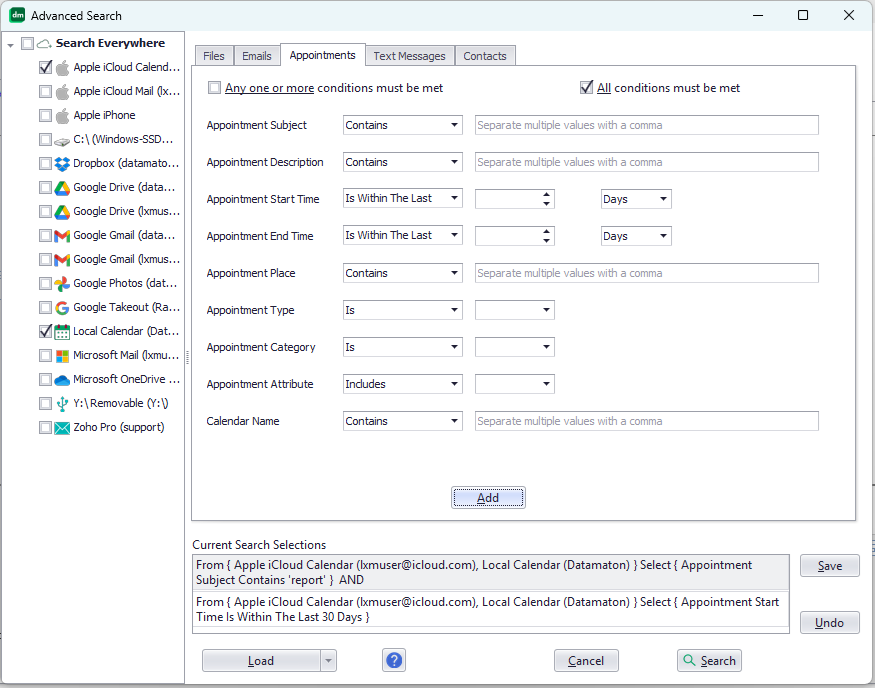
- Appointments: start time, end time, subject, location, description, category (business, personal, vacation…), type (single/recurring…) and the name of the calendar associated with the appointment.
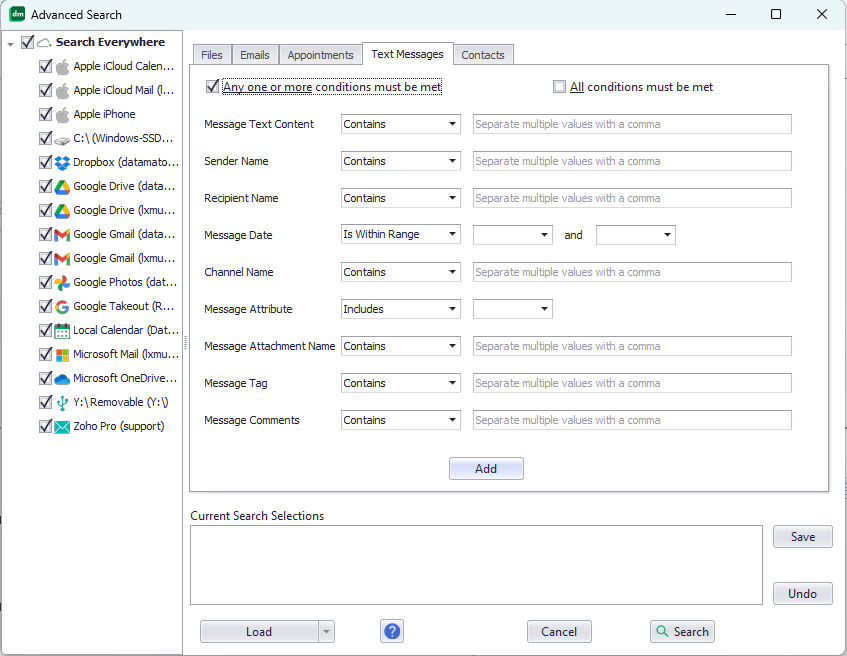
- Text messages: message sender, recipient, message text, date, channel name and message attributes (e.g. important).
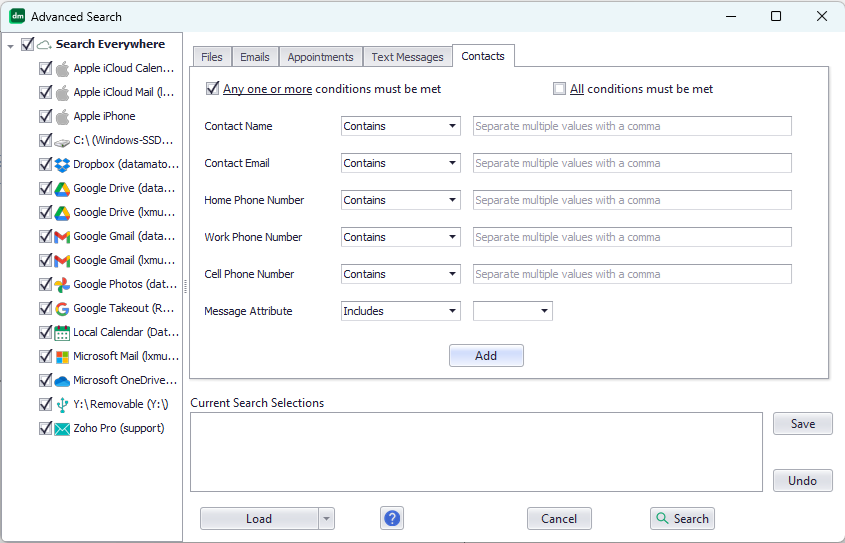
- Contacts: name, email address, home/work/cell phone numbers and email mailbox from which the contact was harvested. Knit will automatically harvest contacts from your email messages, and will track the email folder name from which a contact was harvested.
Note that for all string based searches, you can specify partial strings (i.e. part of the name, part of the subject etc.). Search strings are not case sensitive.
Which search tests are supported?
Different search tests are supported for different types of properties:
- Searching text properties: file & folder name, email subject, sender, recipient etc. are examples of content attributes that have text values. You can search such text properties using the tests “Contains”, “Does Not Contain”, “Is”, “Is Not”, “Starts With”, “Ends With”, “Does Not Start With” or “Does Not End With”.
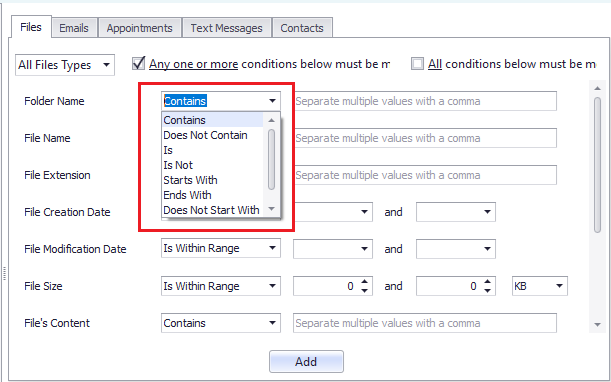

“Contains”, “Starts With”, “Ends With”, “Does Not Start With” and “Does Not End With” tests allow you to enter partial values for the search (i.e. wildcard searches). For example, a document search for FileName Contains fin will find documents that have “finance”, “financial”, “finances” etc. in their file name. Since searches are not case sensitive, this search will also find documents that have “Finance”, “Financial”, “Finances” and other lower/upper case combinations of the search terms.
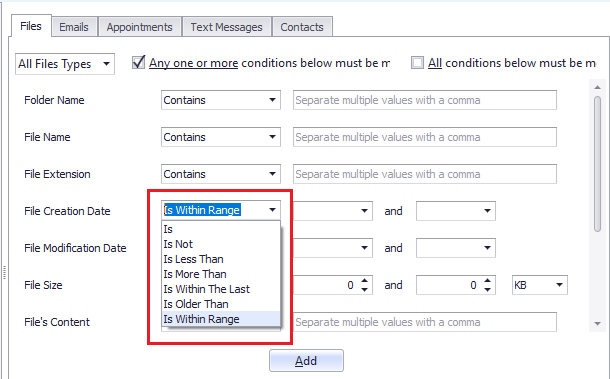
- Searching date properties: file creation or last-modification date, email received date, appointment start & end dates etc. are examples of content attributes that have date values. You can search such date properties using the tests “Is”, “Is Not”, “Is Less Than” or “Is More Than” a specific date. You can also test if the date “Is Within Range” of a start and end date you specify. Finally, there are two tests that are relative to when you issue the search: 1) “Is Within The Last” {some} hours/days/weeks. . . from now and 2) “Is Older Than” {some} hours/days/weeks. . . from now.

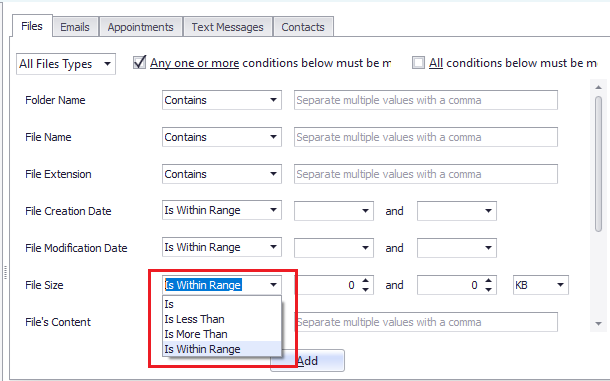
- Search size properties: file size, email size etc. are examples of content attributes that have size values. You can search such size properties using the tests “Is”, “Is Less Than” or “Is More That” a specific size. You can also test for a size that “Is Within Range” of two sizes you specify. You can specify the size in bytes, kilobytes, megabytes or gigabytes.

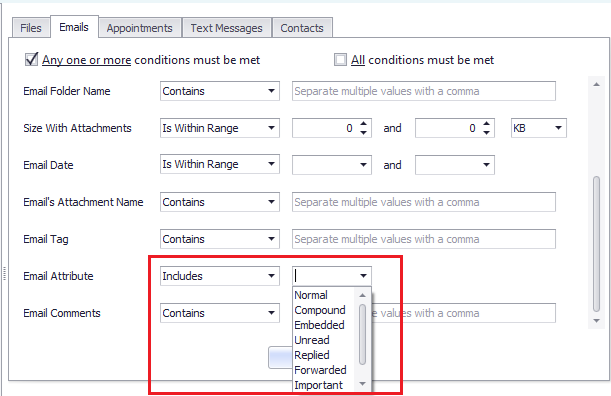
- Search based on content attributes: you can search for content that does or does not have certain “attributes” (properties). All content types support the “important” and “not-important” attributes. Emails also support “read”, “unread”, “replied” and “forwarded” attributes. You can search for content that “Includes” or “Does Not Include” a specified attribute.

How can I search for content that matches multiple search criteria?
All the Advanced Search screens let you enter multiple search criteria for each content type. You will see two checkboxes labelled “Any one or more conditions must be met” and “All conditions must be met”. These checkboxes control how multiple conditions are combined. As the text suggests, when you select the “Any one or more” option, the search will return results that match any one or more of the multiple search criteria you specify. The “All conditions must be met” option is useful to narrow down your search – e.g. “Find documents whose file name contains finance AND whose last-modified date is within the last 1 year”.
You can specify multiple search criteria in the “Quick” search box on the main Knit page too. See Knit Quick Search for details and examples.
How can I re-run a search that I ran previously?
When you click on the Advanced Search icon on the Knit main page, the drop-down menu includes options to run saved searches and recent searches.
Knit automatically saves the most recent 20 searches you’ve run. To re-run a saved or recently issued search, simply click on the “Saved Searches” or “Recent Searches” menu option as shown above and click on the saved or recent search you want to re-run.
You can save a search if you expect to run it repeatedly. The “Save” button close to the bottom right edge of the advanced search screen lets you save your search.
As the picture above shows, the bottom left side of the Advanced Search screen also has a drop-down menu button to load a previously saved serach and the last 20 recent searches.
How can I search with partial information (aka search using wildcards)?
The “Contains”, “Starts With”, “Ends With”, “Does Not Start With” and “Does Not End With” search tests in the Advanced Search window let you search with partial text strings. This is equivalent to searching using wildcards.
For example, a “Starts With fin ” search is equivalent to a wildcard search “fin*”. This search will find all files that start with “fin”, including “finance”, “finances”, “financial” etc. Since text searches are not case sensitive, it will also find “Finance”, “Finances”, “Financial” and other lower/upper case combinations of each character in the search text. Similarly, a “Ends With fin ” search is equivalent to a wildcard search “*fin” and a “Contains fin ” search is equivalent to a wildcard search “*fin*”.
You can issue partial/wildcard searches in the Quick Search text box on the Knit main page too – see Knit Quick Search for details and examples.
Note that Knit supports searching with partial information not just for text based searches but also for date and size based searches. For example, if you only remember the approximate date of a photo, email or message text, you can search for it using a range of dates. This is true for size based searches too, where you can search using a range of sizes.
Can I type in an advanced search into the main search box?
Yes! The quick search box actually supports an extensive search syntax. You can use parentheses and OR and AND operators to create complex search expressions that are even more sophisticated than the “Advanced Search” screen. See Knit Quick Search for details and examples.
How can I tag something and find it later using its tag?
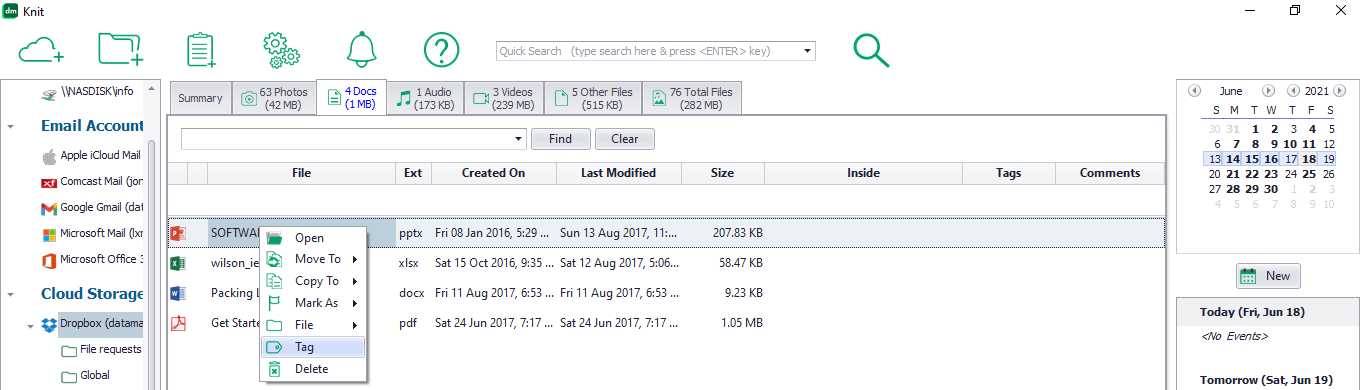
Very often, a file, email etc. belongs to more than one “category” that cannot be captured with just folder and file names. For example, a vacation family photo can belong to “Family”, “Friends” and “Travel” categories. Using file/folder names to categorize them is risky as our own views on naming can eveolve over time and different people can have different naming schemes. Knit avoids that by letting you add any number of tags to any file, email, text message etc. The tags can be anything you want – there are no format restrictions or limits on the number of tag words. To tag something, simply select it and right-click on it to bring up the menu. Then, click on the “Tag” menu button.
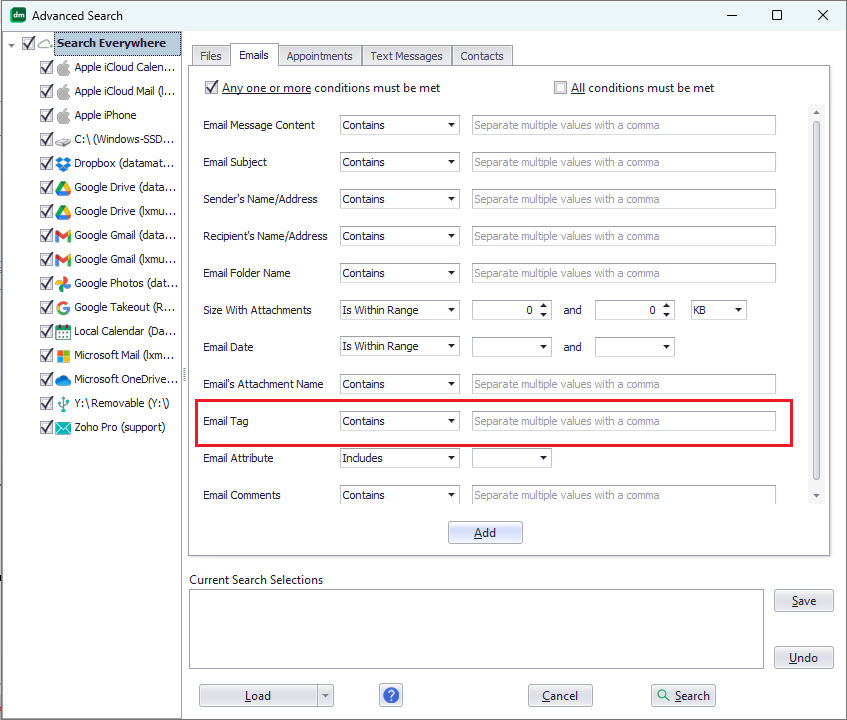
The tags you add essentially become another searchable property associated with that file, email etc. For example, to find an email based on its tag, select “Email Tag” and “Contains” in the “Advanced Search” screen and enter the tag values to search as shown below.
You can also add content to a Virtual Folder based on its tag values.
Is content based searching supported?
Yes, content based search is supported for documents, emails, text messages etc.
Please note that for files, content based searching is currently supported only for files that reside on the local computer’s hard disks – not for files that are email attachments or files that are stored on remote cloud storage accounts. Knit internally uses Windows Search to perform content based searches. Thus, content based file searching will not work if you disable or restrict Windows Search. This dependence on Windows Search applies only to searching for files based on their content – all other searches are independent of Windows Search.
My search did not return expected results. What can I do?
Will Knit let me search for Windows system files, program installation files, registry entries etc.?
Not by default, since Knit’s primary focus is the personal digital content you create and use. Most computers have hundreds of thousands of Windows system and program installation files that we will never browse or search, and these files can change very often (some Windows system files can change several times per second!). Indexing and re-indexing them at every change can significantly slow down your system, so Knit skips these folders by default. However, you can tell Knit to index such folders and files too. Select your Windows installation drive (typically C:\) and change its settings using the procedure described in “How can I control the indexing process?”. You can tell Knit to index the entire C:\ drive, or selectively include or skip specific folders.
Knit cannot index the Windows Registry, so you cannot search for registry entries.