
How can a Virtual Folder help organize content from different places?
A Virtual Folder is a way to organize your content into categories. It is a logical – but not a physical – folder that can include any type of content from anywhere. A given file, email, appointment etc. can exist in multiple virtual folders and a given Virtual Folder can contains different types of content from different storage locations. A virtual folder typically has one or more rules associated with it that determine its contents. For example, you can create a Virtual Folder called “Financial Info” with the ruless:
- From all my storage locations, include files whose folder name contains “Fin”. The “Contains” part will include files in folders “Finance”, “finance”, “Financial”, “FinAid” etc. too. The “all storage locations” part will give you a unified view of such folders across your local hard disk, backup drives, Google Drive, OneDrive. . .
- From everywhere, include documents whose file name contains “fin”. This will include matching calendar and email attachements and documents inside ZIP and PST files too – on your computer as well as in cloud storage.
- From everywhere, include emails whose sender or recipient name contains “Vanguard” or “Fidelity” or “UBS”. This will add emails with financial info to this virtual folder.
- From everywhere, include appointments with a subject that contains “advisor”. This will add matching appointments to the virtual folder.
If you create a task to backup this Virtual Folder, Knit will gather the selected content from the different sources and back it up to the specified destination.
Is any content copied into a Virtual Folder when you create or update it?
No. A Virtual Folder only contains rule specifications and links to content that exists at your Data Sources. What you see in a virtual folder stays at its original location. A virtual folder does not make an additional copy of the included content.
What’s the difference between a Virtual Folder and a standard Windows Shortcut?
While they may look similar, a Knit Virtual Folder is a dynamic, automated and unified container whereas a Windows Shortcut is a static, manual link to a single specific file or folder:
- Automatic vs. Manual: A Windows Shortcut only points to one specific file or folder – on the same computer – that is created manually. A Datamaton Virtual Folder is rule based – it automatically finds and gathers every file, email, appointment or contact that meets your criteria across all your cloud and local storage locations.
- Unified View: Shortcuts can only lead you to one location at a time. Virtual Folders create a Unified View, allowing you to see files from Google Drive, Slack, and your local NAS sitting side-by-side as if they were in the same physical folder.
- Self-Updating: If you add a new file to your cloud storage that matches a Virtual Folder’s rule, it will appear automatically in that Virtual Folder. A standard shortcut cannot ‘discover’ new content.
- Actionable: You can create a task to back-up a Knit Virtual Folder but not a Windows shortcut.
How do I create a Virtual Folder?
Click on the “Create Virtual Folder” icon from the main Knit menu at the top.

You will be prompted for a Virtual Folder name, description etc.
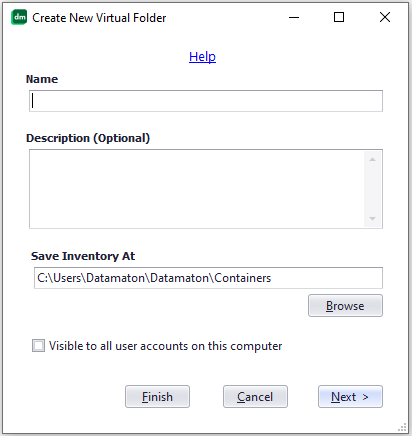
Enter the basic virtual folder information and click on the “Next” button. You will be prompted to enter the rules that determine this Virtual Folder’s content, as shown in the screen below.
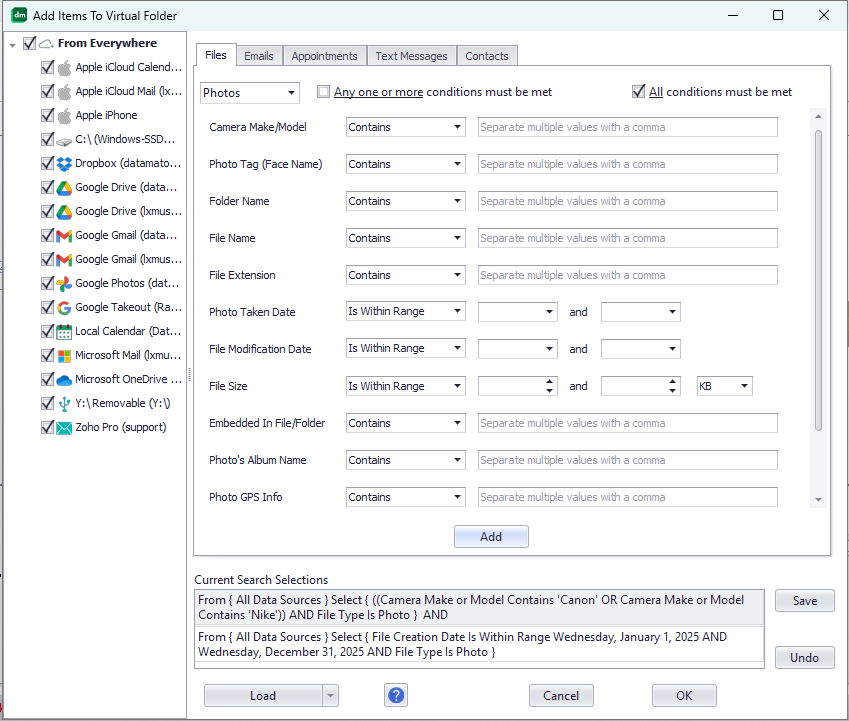
Select the rules and click on “OK” to add the rules. Then click on the “Finish” button to create the Virtual Folder. Note that this screen is almost identical to an advanced search screen. This is because a virtual folder is essentially a specification of how to “search” content to include.
How do I add content to a Virtual Folder?
There are many ways to add content to a Virtual Folder.
- You can create rules that determine what content belongs to the Virtual Folder when you create it (see “How do I create a Virtual Folder?”).
- You can drag-and-drop selected files, emails etc. into the Virtual Folder.
- You can drag-and-drop an entire tab from a Data Source (e.g. the Photos tab for the local hard drive C:\) or from the Search Results window into the Virtual Folder.
- You can drag-and-drop a folder or sub-folder from a Data Source into the Virtual Folder (e.g. the Folder “Inbox” from your Google Gmail account).
- You can drag-and-drop an entire Data Source into the Virtual Folder.
What content can a Virtual Folder contain?
A Virtual Folder can contain any supported content type (files, emails, contacts, appointments, text messages. . .) from anywhere.
When are a Virtual Folder’s rules evaluated?
- a) You select a Virtual Folder and double-click on it to open it for the first time (i.e. it was not already displaying its contents).
- b) Whenever you select a Virtual Folder and click on its its “Show Details” menu option (even if the virtual folder was already displaying its current contents).
- c) When it detects new or modified content (via incremental indexing) that affects a virtual folder. For example, lets say you have a “Global Inbox” virtual folder with the rule “From all Data Sources, include emails and attachments in folder Inbox“. As Knit incrementally indexes an email Data Source and discovers new email in Inbox, it will update the display for the “Global Inbox” virtual folder to show this new email.
How much space does a Virtual Folder consume?
Virtual Folders consume very little space – typically just a few kilobytes each – regardless of how much content they actually include. This is because they do not contain any actual data, just rule specifications and links to the actual data. If you drag-and-drop a very large number of individual files, emails etc. into a Virtual Folder, each such item will be stored as a link within it and the Virtual Folder size may get slightly bigger (e.g. tens or hundreds of kilobytes). A virtual folder that includes gigabytes of data via inclusion rules will typically use only a few kilobytes of disk space.
What happens when I delete specific content from a Virtual Folder?
When you use the “Delete” menu option to delete specific items from a virtual folder, the actual content is deleted from the original Data Source. For example, if you have a Global Inbox Virtual Folder and select and delete specific emails from your Gmail account displayed here, the actual emails from your Gmail account are deleted.
There is a specific case that applies only to content that you have drag-dropped into a Virtual Folder rather than included via a rule (see “How do I add content to a Virtual Folder?”). For drag-dropped content, Knit will not show a “Delete” menu option at all when you right-click on the content item. Instead, it will display a “Remove From Virtual Folder” menu option. As the text implies, when you click on this menu option, the content is only removed from the Virtual Folder – the actual content is NOT deleted from the original Data Source where it resides. There’s a reason for this! Lets say you create a “Pending Work” Virtual Folder to track your tasks and drag-drop an email into it as a task reminder. Once you’ve completed that work, you may want to remove the email from the Virtual Folder but not delete it from its original Data Source. To allow this, the “Delete” menu choice for the manually drag-dropped item is changed to “Remove From Virtual Folder”. If you want to actually delete the original email, you can do so by selecting it from its original Data Source and using the Delete menu option there.
Is it safe to delete a Virtual Folder? What happens to its files, emails etc.?
Yes. A Virtual Folder is just a unified view that is a collection of links – not physical storage. When you remove a Virtual Folder from Knit, only the Virtual Folder specification is removed. The actual content that was included in the Virtual Folder is NOT deleted from its original storage location
.
To remove a Virtual Folder, select it in the left panel of Knit and right-click on it to see its menu. Click on the “Remove” menu choice to remove it.
Will Knit create any default Virtual Folders during installation?
The first time you run Knit, it may auto-create some or all of the following Virtual Folders:
Global Inbox: as the name suggests, this virtual folder captures all emails and attachments in your Inbox folders across all email accounts. This is simply a virtual folder with the rules:
- From all Data Sources, select emails whose email folder name contains the word “Inbox”.
- From all Data Sources, select files that are embedded inside emails whose email folder name contains “Inbox”.
Knit will automatically re-evaluate these rules every time a new email arrives in any Inbox, or a message is deleted or moved from there. This means that Global Inbox will always display the current state of the contributing Inboxes.
Recent Items: this virtual folder selects the following content from all Data Sources:
- Emails whose message sent/received date is within the last 7 days.
- Files that were created or modified within the last 7 days.
- Text messages that were sent or receied within the last 7 days.
- Calendar appointments with start or end dates within the previous 7 or next 7 days.
Of course, the “last 7 days” will keep up with new content as it arrives, just like the Global Inbox example above.
Favorites: this virtual folder selects the following content from all Data Sources:
- Emails whose folder name contains the word “Starred”.
- Files whose file name, folder name or file tag contains the word “Favorite”.
- Files, emails, text messages, appointments, contacts etc. that you’ve marked as “Important”.
All Unread Email: this virtual folder selects the following content: “From all Data Sources, select emails that are marked as unread”. Thus, it will also capture unread emails that are in email folders other than “Inbox”.
You can drag-drop additional content into these pre-built Virtual Folders, delete them and add or modify their content selection rules. Note that the “Free” version of Knit will not create any default virtual folders. This is because the free version limits how many total Data Sources and/or Virtual Folders you can have. Knit will not eat into this allowance by creating default Virtual Folders.