
Finding a file, email, appointment or social media post months or years later is a constant and frustrating battle. Not being able to find something is as bad as not having it in the first place! In this post, I’ll talk about the problems with current search tools and mechanisms. I’ll show how the advanced search capabilities of our app Knit solves these problems. This is the 1st post in my blog series related to finding your personal digital content. Other posts in this series include:
Part 1: this post – Intro to the search problem and Advanced Search.
Part 2: Quick Search and its powerful search syntax.
Part 3: Customizing the search results display.
Part 4: Other ways to find your content.
Part 5: Integration with other tools & next steps.
Problems with existing search tools
There are lots of search tools available today. However, finding something by searching for it is still difficult for many reasons.
- There’s no “global” search. We still have to remember where we’ve stored something before we can search for it there. This problem is getting worse with the proliferation of free email and cloud storage accounts. We often have half a dozen possible places where that file or email could be, and we have to search each place one by one.
- Some content types are difficult to search. Emails, text messages and appointments typically far fewer search tools. Files and emails inside ZIP, PST, MBOX etc. files are inherently not searchable. Attachments inside emails are in the same category. Unlike documents, we cannot search photos and videos based on content.
- Some storage locations have very poor search tools. For our content at web based email, calendar and cloud storage providers, we are dependent on the search tools they provide. Some vendors and storage locations (e.g. phones) have poor search capabilities.
- We cannot search using what we naturally remember. We typically want to search for photos and videos based on the people or objects they contain, the location where they were taken or approximate date ranges. We may want to find an email based on an attachment that we remeber it contains, or based on a specific recipient’s name. Unfortunately, most existing search tools don’t allow this.
- App sprawls make life harder. We have to use different apps for different vendors and storage locations, and they keep changing on us! The app sprawl is getting as bad as the storage location sprawl.
Datamaton Knit – A Universal Search Tool
Our content manager app Knit lets you find any type of content, stored anywhere, with whatever you naturally remember (FAQs).
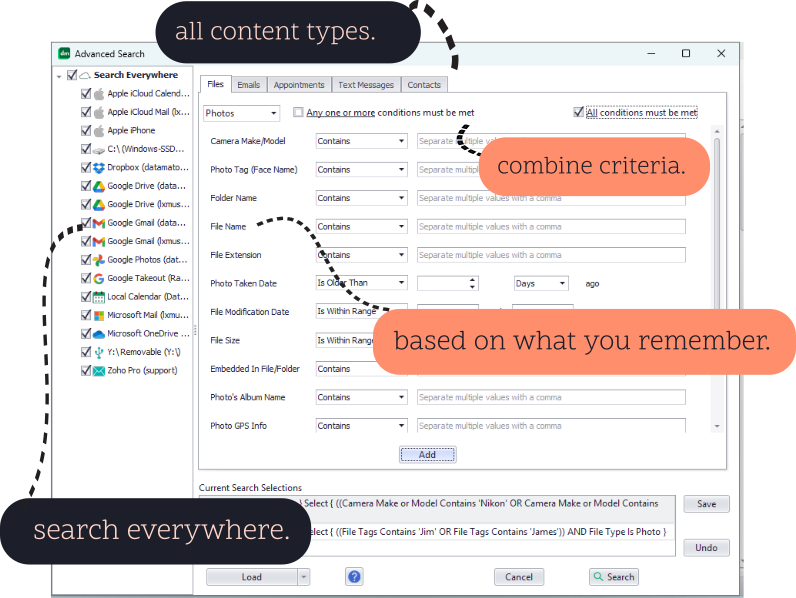
- Unified global search: You can search all or a subset of storage locations in a single search. This includes local devices like hard disks, USB/network disks, CDs, phones etc. as well as cloud based email, calendar or file storage accounts.
- All content types: Search emails, appointments and text messages too, not just files.
- Based on whatever you remember: For example, you can find a photo based on faces it contains or a date range.
- Without compromising privacy: Knit uses your own computer to do all the work and saves everything to your local drive only. You do not need to create an account with Datamaton. Absolutely nothing about you or your content is ever sent to our servers.
In the next section, I’ll give you more details about how you can use Knit’s advanced search capabilities.
Advanced Search
There are many ways Knit helps you find your content. In this post, I’ll only cover Knit’s “Advanced Search”. In subsequent posts, I’ll cover how it helps you quickly locate content within a specific storage location.
Before Knit can search a storage location (called “Data Source”), it must index it. After you install Knit, you first tell it about all the storage locations where you have personal digital content. You do that by following the procedure described here. Once Knit has indexed your storage locations, you can issue an advanced search by clicking on the search icon (magnifying glass) at the top right corner of the menu bar.
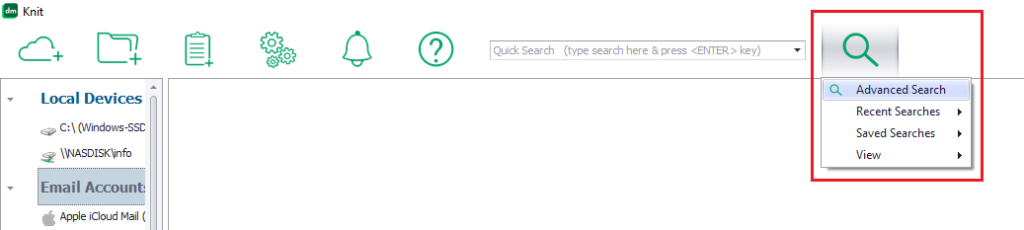
The advanced search screen that opens lets you chose the storage locations to search, content types to search and the content properties to search.
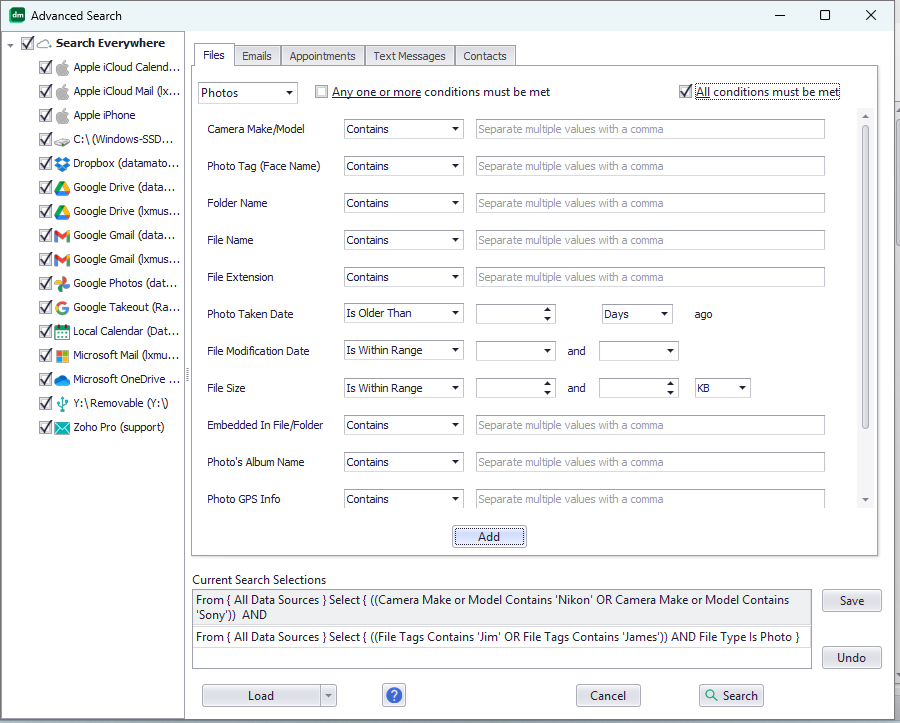
Select storage locations to search
The left pane of the advanced search window lets you select the storage locations to search. Knit supports a wide variety of storage locations, both local and remote (and more are being added). Local storage includes your computer’s hard disks, USB and network drives, phones, CDs, DVDs and flash storage used in cameras, camcorders and music players. Remote storage include email, cloud file/photo storage and calendar accounts.
Select type of content to search
The right-hand panel has separate tabs for the supported content types. Knit currently supports files, emails, appointments and contacts. Knit natively supports compound files, so a search will automatically return matching content embedded inside ZIP files and email attachments. So a photo search will return a matching photo that is an email attachment inside an email that’s stored inside an MBOX file that is itself inside a Google Takeout ZIP file that you downloaded!
Select content properties to search
The set of properties you can use for the different content types is listed at Which content properties can I use to search?. Note that:
- You can combine multiple search criteria using an OR operator (i.e. any one or more conditions must match) or an AND operator (all conditions must be met). For example, to find your 2025 Christmas break photos, you can seach for photos (taken with a Sony OR Canon camera) AND (taken between Dec 20, 2025 and Jan 3, 2026).
- Knit supports content specific search attributes. For example, you can search for photos & videos based on the faces they contain; or for music and video files based on their play duration. The intent, of course, is to let you search based on what you’d remember for that type of content.
Select how content properties are matched
The full list of search tests that Knit supports are listed here. Note that:
- For text based attributes like file & folder names, email & appointment subjects, email senders & recipients etc., Knit lets you enter partial text (wildcard searches) using the Contains and Does Not Contain tests. Text matching is not case sensitive, so a “File name Contains financ” search will return files that contain finance, Finance, finances, financial, Financial Info etc. in their file-name
- For date based attributes like file & email dates, Knit lets you search based on a date range, including a range relative from “now” (i.e. find all documents updated within the last 7 days from now).
- Similarly for size based attributes like file & email sizes, Knit lets you search based on a size range (e.g. find all videos that are greater than 10 megabytes but smaller than 100 megabytes).
- Again, for duration based attributes like video length and music file play duration, Knit lets you search based on a range (e.g. find all videos that are between 20 seconds and 1 minute long).
As stated before, Knit can index content inside compound files like ZIP, 7z, PST, MBOX, TAR etc. natively – even when they are themselves embedded (e.g. inside an email as attachments). Whenever you issue a search, the results will automatically include matching embedded files, emails and appointments. You can find more information about Knit’s search capabilities in the Frequently Asked Questions.
As you can see, search is a huge focus area for us and Knit’s Advanced Search goes a long way in finding personal digital content. However, this isn’t the only way Knit helps you find your content. In the next few posts, I’ll write about more ways in which the app helps you quickly find what you are looking for, either within a specific storage location or across all of them.
Learn more about Knit or download the free, trial or paid version. Contact Us if you have any questions.