
We often have useful information in emails and want to manage them similar to files so we can search, organize and use them as needed. Unfortunately, this is not straightforward:
- a) There are very few apps that backup your web based email accounts, or organize them in ways similar to how we organize files (e.g. using file/folder naming conventions, creating links or copies in multiple folders, tagging etc.).
- b) Email backup tools convert emails to files, where they get lost. For example, Google Takeout is a way to back up your Gmail account. However, Google saves the emails as an MBOX file which is itself embedded inside a ZIP file. You cannot search, organize or use the emails as emails any more (e.g. search, read or forward them).
Datamaton’s Digital Manager (called Knit ) removes these limitations. In one app, it:
- 1) Unifies local storage with web based email accounts: Knit indexes your local storage (which may have your Google Takeout ZIP files) as well as cloud based email accounts.
- 2) Unifies files and emails: When Knit indexes MBOX, Outlook PST, EML or MSG email files, it recognizes them as emails and shows them as such. This includes deeply embedded email files, so the emails in your Google Takeout ZIP file will be shown as emails with its sender, recipient, subject, date etc. properties intact.
- 3) Unifies the operations you’d want to perform on them (e.g. search, organize, backup, use…). You can search emails as emails using subject, sender etc. values, even if they are saved as deeply nested email files. The search can simultaneously search “live” web-based email accounts and the emails saved in backup files. You can tag emails and organize them into Virtual Folders that also contain non-email files, appointments etc. You can back up individual emails as EML files and even migrate (move) them to another live email account.
1) Move or copy emails into web based email accounts
You can use Knit to move or copy emails from or to your Gmail , Apple iCloud mail, Micorosft Outlook mail, Yahoo mail, Office 365 mail etc. accounts.
- 1) If you haven’t done this already, tell Knit to index your source and destination email Data Sources using the procedure described here or here. The source of the email move/copy can be a live web based email account or file based emails from Google Takeout, Mozilla Thunderbird, Outlook PST files, MBOX files or EML/MSG email files.
2) After Knit has indexed your email accounts, you can double-click on it to display its contents. The Emails tab on the right will show all your emails.
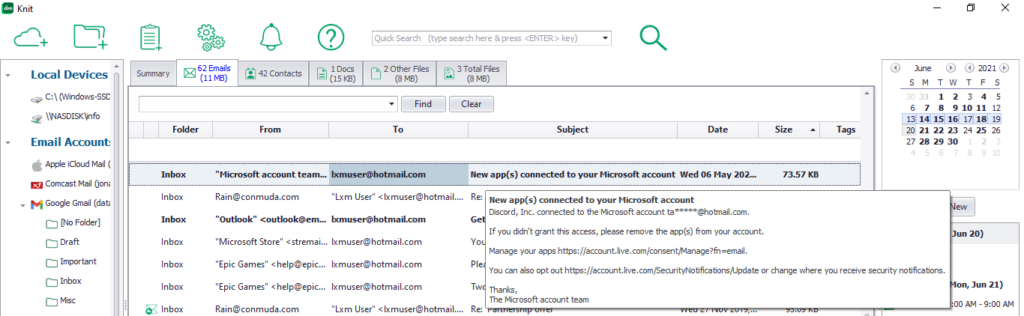
3) Then, simply select all the emails you want to move or copy and right-click to open the menu. Click on the Move To or Copy To menu option and select the target location where you want to move or copy the messages.
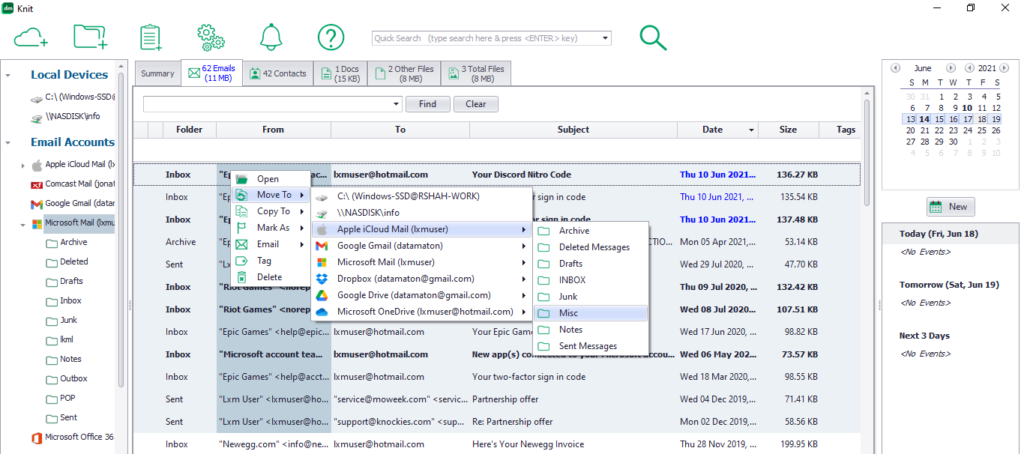

The moved or copied emails will retain all their original properties like sender, recipients, dates, attachments etc. This is much better than forwarding messages, which overwrites these attributes. You can reply/forward the moved/copied messages as if they had been originally received in that destination account. So you can continue old email threads without the recipients having to do anything!
2) Move or copy emails to files
Knit lets you move or copy emails to your local computer hard drive, USB/network drive or to cloud storage accounts like Google Drive, Microsoft OneDrive, Dropbox etc. Knit saves the emails as industry standard EML files. Many free programs like Windows built-in mail app, Mozilla Thunderbird etc. can open such EML files. Furthermore, if you use Knit to view a folder that has such saved EML files, it will actually show them as emails in their own email tab.
To move/copy emails to files, use the exact same procedure as described in method 1) above, but select a file-based Data Source as the destination instead of a web based email account.
3) Create a task to backup emails on a schedule
You can use Knit to create a backup task to copy emails on a schedule. Knit lets you use sophisticated rules to select which emails to copy.
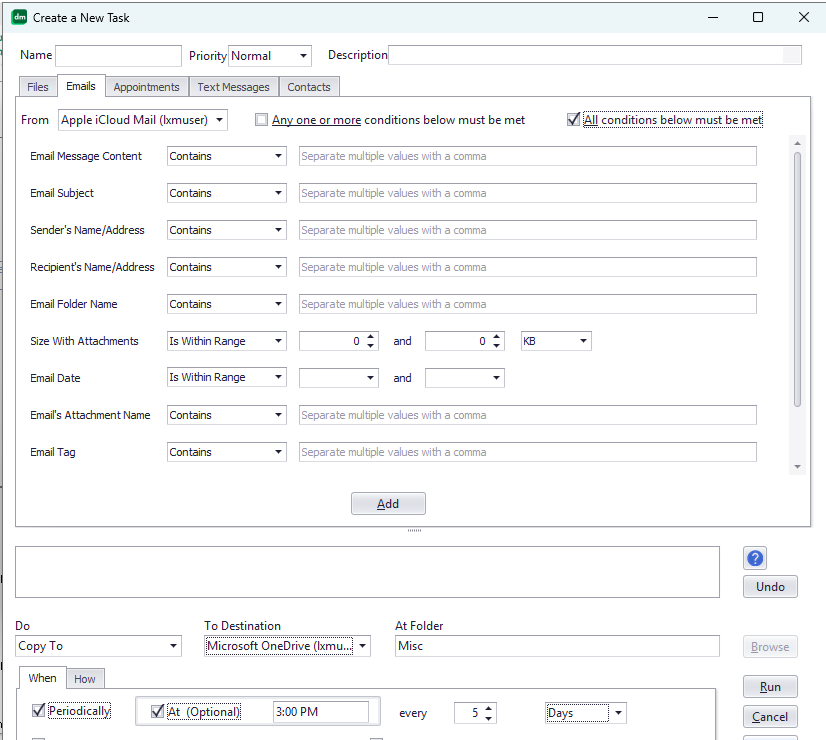
See How do I create a task? for more details.
4) Gather emails from multiple places to move or copy
All the three methods listed above will work with emails from different sources. In method 1) and method 2) above, you manually select the emails to move or copy. You can do this from a search results window too (see search FAQs). For example, you can issue a Knit email search: From all Data Sources, find emails from 1st Jan 2025 to 31 Dec 2025. Search results may include emails from multiple email accounts, and perhaps some emails from file based sources like Microsoft Outlook PST files. You can select emails from different sources in the search results window, and move or copy them just as described in methods 1) and 2) above.
In method 3) above, you create an email backup task. The source of this task can be a Knit Virtual Folder too. By definition, a virtual folder can include content from multiple Data Sources. So when you create an email backup task with a virtual folder as the task source, Knit will automatically gather all matching emails from the different underlying Data Sources.
Learn more about Knit or download the free, trial or paid version. Contact Us if you have any questions.